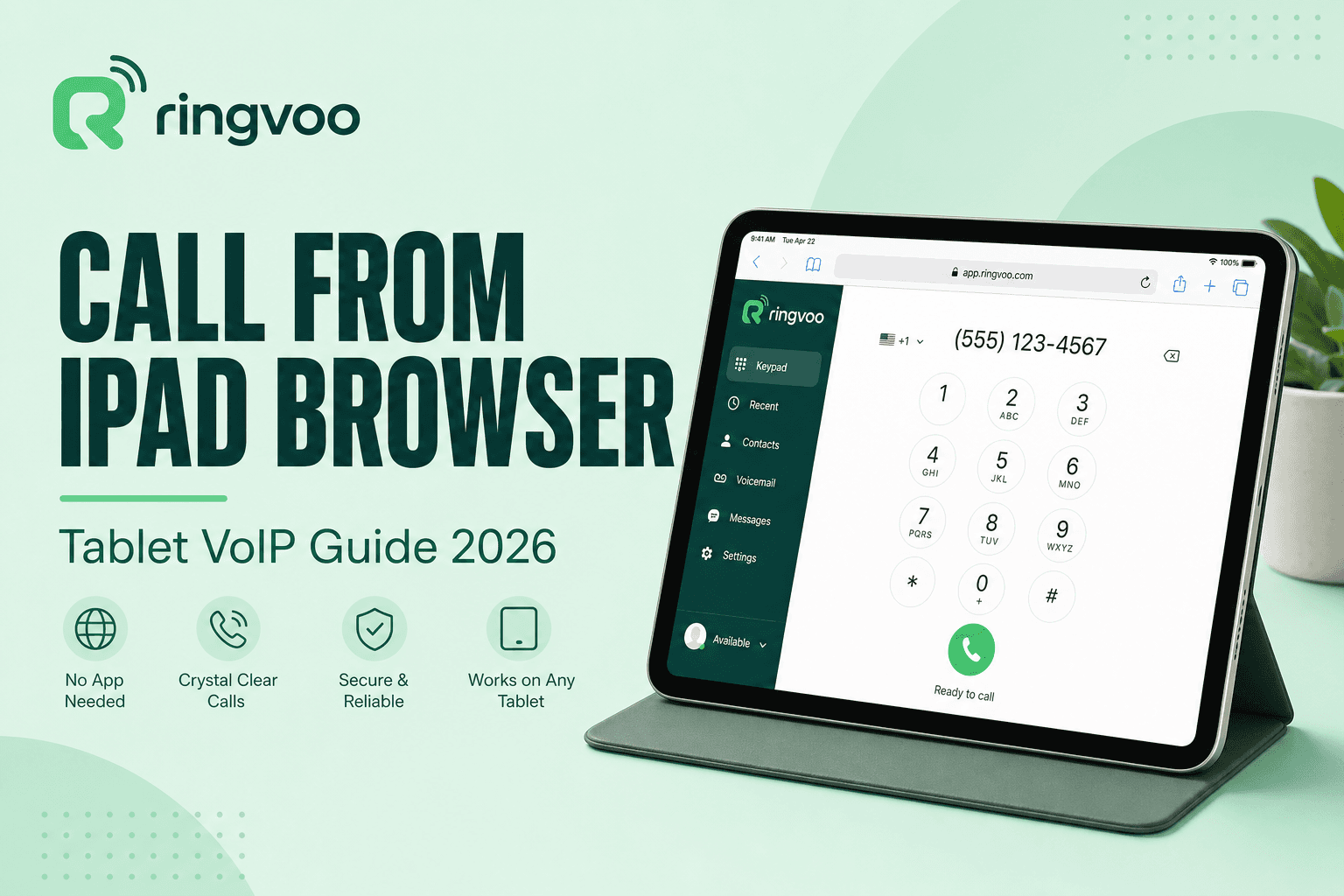
If you want to call from iPad browser tabs instead of cluttering your tablet with single-purpose dialer apps, you are choosing the same friction-free path travelers, students, and remote workers prefer on laptops — open Safari or Chrome, log in, dial a real phone number, and talk over Wi-Fi. iPads and Android tablets ship with capable microphones, long battery life, and screens large enough for contact lists and rate lookups, yet most international calling guides still assume a smartphone SIM or a desktop Skype install.
Ringvoo turns any modern tablet browser into an international PSTN dialer with pay-as-you-go credits and no App Store download. This guide explains how browser calling works on iPad and Android tablets, device and network requirements, Safari versus Chrome behavior, cost comparisons against carrier plans, and step-by-step setup for reaching banks, family landlines, and business numbers worldwide from your couch, hotel room, or campus library.
Key Takeaways
- Safari and Chrome on iPad support WebRTC — the technology that lets you call from iPad browser sessions without installing Skype or WhatsApp.
- Tablets excel for international calling over Wi-Fi when you have no local SIM or want to avoid roaming — see international calls without a SIM.
- Browser calling reaches any mobile or landline — unlike FaceTime or WhatsApp, which only connect app users.
- Technical deep dives: what is browser calling and WebRTC calling explained.
- Check live international rates on your tablet before long calls home.
Why Tablets Are Ideal for Browser-Based International Calls
Tablets occupy a sweet spot between phones and laptops:
Bigger UI for dialers and contacts. Entering +63, +971, or +44 numbers on a phone keyboard frustrates many users; iPad screens reduce misdials.
Battery endurance. A two-hour catch-up with family abroad drains less battery on Wi-Fi voice than video streaming or cellular roaming.
No SIM dependency. Wi-Fi–only iPads and campus tablets call internationally without a carrier plan — ideal for exchange students and digital nomads between destinations.
Shared household device. One family iPad in the kitchen becomes the international calling station without tying calls to a single person's phone plan.
| Device | Browser calling | Native cellular voice | Free apps (WhatsApp) |
|---|---|---|---|
| iPad (Wi-Fi) | Yes — Safari/Chrome | No SIM, no cellular voice | App install required |
| iPad (cellular) | Yes — browser over Wi-Fi or data | Carrier int'l rates apply | App install required |
| Android tablet | Yes — Chrome primary | Varies by model | App install required |
| Laptop | Yes | N/A unless tethered | App install required |
For roaming comparisons, read roaming vs browser calling.
iPad Browser Calling: Safari vs Chrome
Apple Safari is the default on iPad and receives WebRTC updates with iPadOS releases. Google Chrome for iPad also supports WebRTC and may feel familiar if you use Chrome on desktop.
| Browser | WebRTC support | Microphone permission | Home screen shortcut |
|---|---|---|---|
| Safari | Excellent on iPadOS 15+ | Settings → Safari → Microphone | Share → Add to Home Screen |
| Chrome | Excellent | In-app prompt on first call | Add to Home Screen via Share |
| Firefox | Supported | In-app prompt | Limited PWA feel |
| Edge | Supported | In-app prompt | Add to Home Screen |
Safari tip: If microphone access fails, check Settings → Privacy & Security → Microphone and ensure Safari is allowed. Also verify no Screen Time restrictions block microphone use.
Chrome tip: iPadOS routes Chrome through Apple's WebKit engine — performance is comparable to Safari for voice; choose based on password manager and sync preferences.
Private browsing: Some privacy modes restrict persistent login — use a normal tab for Ringvoo so sessions remain convenient.
Android Tablet Browser Calling
Samsung Galaxy Tab, Lenovo, and Pixel Tablet users should prefer Chrome for the most predictable WebRTC behavior. Allow microphone permission when prompted; if blocked, open Settings → Apps → Chrome → Permissions → Microphone.
Android tablets with SIM slots may still prefer browser VoIP over cellular international rates — mobile data works, but Wi-Fi usually saves money and preserves data caps.
Connect Bluetooth headsets through the tablet's standard audio settings; browser dialers route voice to paired AirPods, Galaxy Buds, or wired USB-C headsets without extra configuration.
Network Requirements: Wi-Fi, Cellular, and VPN
Voice over WebRTC needs less bandwidth than video:
| Connection | Minimum | Recommended | Notes |
|---|---|---|---|
| Wi-Fi | 512 Kbps | 2+ Mbps | Best cost profile |
| 4G/5G tablet data | 512 Kbps | 1+ Mbps | Monitor data usage |
| Hotel / cafe Wi-Fi | Variable | Test before long calls | Captive portals may drop sessions |
| VPN corporate | Adds latency | Split tunnel if IT allows | Some VPNs degrade UDP |
Run a quick speed test in the browser before important calls. If latency exceeds 200 ms or packet loss appears, switch networks or move closer to the access point.
For audio optimization, see VoIP call quality tips.
Step-by-Step: Call from iPad Browser in 5 Minutes
- Open Safari or Chrome on your iPad.
- Navigate to ringvoo.com/login and create an account or sign in.
- Add credits via secure checkout — check Philippines, India, or USA rates for your destination.
- Open the dialer and enter the full international number in E.164 format — e.g.
+639171234567or+12025550199. - Allow microphone access when the browser prompts.
- Tap call and wait for ring tone. Use the on-screen keypad for IVR menus (bank PIN prompts, airline menus).
Add to Home Screen: In Safari, tap Share → Add to Home Screen. The Ringvoo icon launches like a lightweight app without App Store installs — perfect for recurring call from iPad browser workflows.
Headset recommendation: Wired or Bluetooth headsets reduce echo on tablet speakers. iPad built-in mics work for quiet rooms; kitchens and cafes benefit from isolation.
Call internationally from your iPad browser
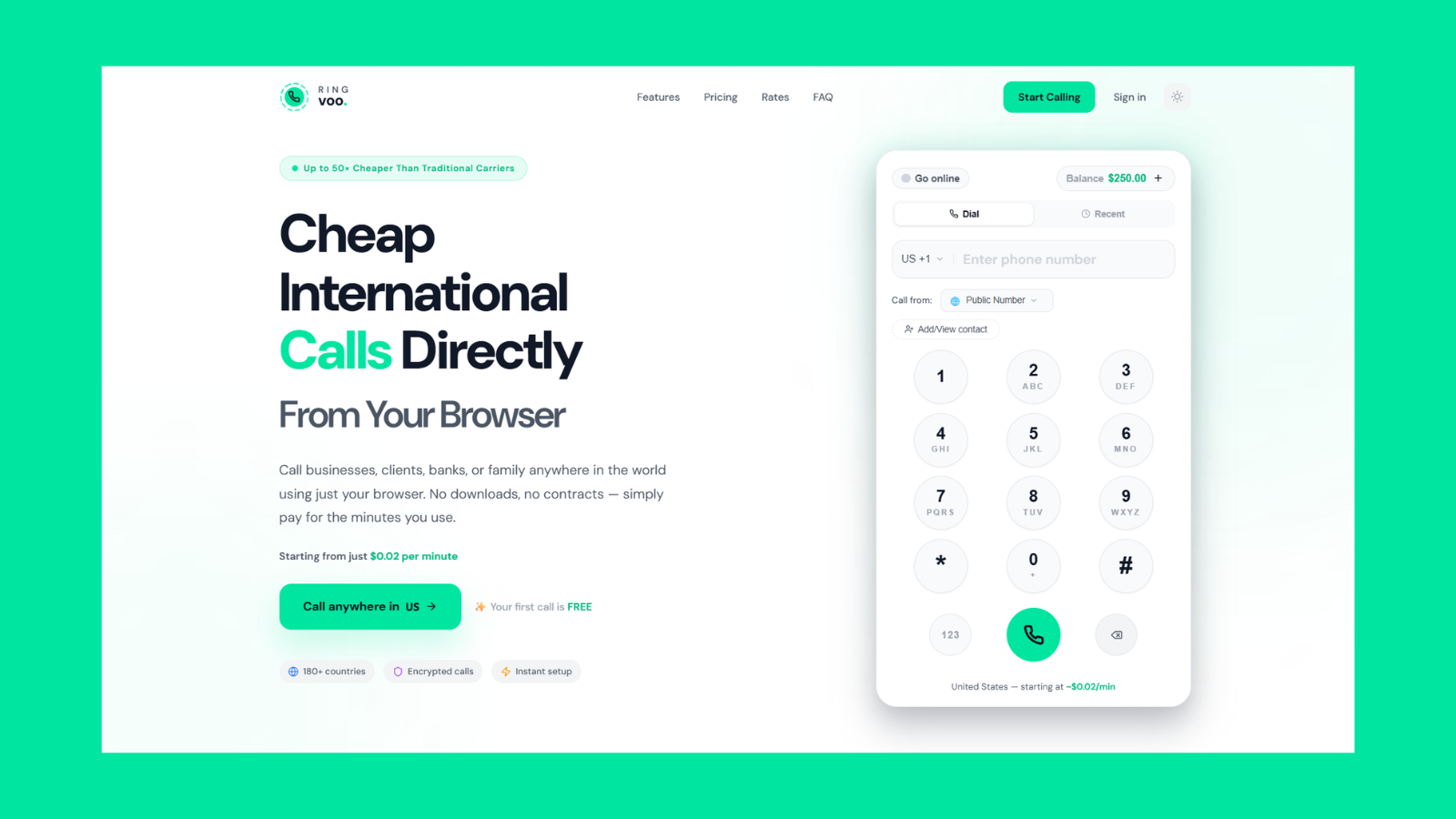
Turn Safari or Chrome into an international PSTN dialer — reach mobiles and landlines in 180+ countries from your tablet over Wi-Fi. No Skype download, no carrier international pack required.
Try Ringvoo free — call from your browser · View international rates
Tablet Calling vs iPhone Cellular vs Laptop
iPhone with local SIM: Convenient on the go, but carrier international rates and roaming surcharges add up fast — especially calling US or European landlines from Asia or the Gulf.
iPad browser VoIP: Fixed location flexibility with large UI; ideal at home, office desk mounts, and hotel rooms. Wi-Fi-only models avoid SIM logistics entirely.
Laptop browser VoIP: Same Ringvoo experience with better multitasking during note-taking calls. Tablets win for portability and couch comfort.
Many users pair both: iPad for family video-free voice marathons, laptop for work calls with CRM notes. You can also receive calls in browser on tablet if you add a virtual number.
Common Tablet Calling Mistakes to Avoid
Denying microphone permission permanently. Reset in iOS Settings if you tapped "Don't Allow" accidentally.
Double country codes. Enter +63 OR 011 63, not both patterns mangled together in the dialer field.
Relying on tablet cellular without checking rates. Browser VoIP over Wi-Fi almost always beats carrier per-minute international pricing.
Expecting FaceTime to reach landlines. FaceTime calls Apple IDs; browser VoIP calls PSTN numbers — banks, hospitals, and grandparents' home phones included.
Ignoring time zones. Tablet convenience makes late-night dialing easy — verify local time at the destination before ringing.
Auto-lock during long IVR holds. Extend iPad auto-lock temporarily or tap the screen periodically so the browser session stays active on hold with US insurance or government lines.
Use Cases: Who Calls from Tablets?
| User profile | Typical destination | Why tablet browser |
|---|---|---|
| Exchange student (Wi-Fi iPad) | Parents' landline abroad | No local SIM needed |
| Retiree traveler | Bank, pharmacy, doctor | Large buttons, familiar Safari |
| Remote worker (coworking) | Client PSTN lines | App installs blocked on guest Wi-Fi |
| OFW family hub | Home country mobile | Shared kitchen iPad |
| Digital nomad | Multi-country clients | One dialer, many destinations |
Explore digital nomad international calling for broader travel playbooks.
Frequently Asked Questions
Can I really call from iPad browser without an app?
Yes. Modern iPadOS Safari and Chrome support WebRTC voice to PSTN through providers like Ringvoo. No App Store download is required — only a browser, microphone, and internet.
Does browser calling work on Wi-Fi-only iPads?
Absolutely. Wi-Fi-only iPads are among the best devices for browser international calling — no cellular plan, no roaming, just broadband and credits.
Will the person I call know I am on an iPad?
No. Your call arrives as a standard phone call on their mobile or landline. They cannot tell you used a tablet browser unless you mention it.
Can I use AirPods with iPad browser calling?
Yes. Pair AirPods normally; WebRTC audio routes through the active Bluetooth headset once connected.
Is calling from iPad browser cheaper than FaceTime Audio?
FaceTime Audio is free but only reaches other Apple users on FaceTime — not landlines or Android mobiles. Browser VoIP charges per minute but reaches any phone number worldwide.
Does Ringvoo work on iPhone Safari too?
Yes. The same browser experience works on iPhone and iPad — this guide focuses on tablet advantages (screen size, shared device use).
What about Android tablets like Samsung Galaxy Tab?
Chrome on Android tablets supports the same Ringvoo dialer. Follow the same login, credit, and E.164 formatting steps.
Can I receive international calls on my tablet?
Yes with a Ringvoo virtual number — see receive calls in browser for inbound setup on tablet browsers.
Start Calling from Your iPad Browser Today
The simplest way to call from iPad browser tabs in 2026 is Wi-Fi plus pay-as-you-go browser VoIP — not carrier international packs or app store dialers you use twice a year. Ringvoo connects your tablet to any worldwide mobile or landline with credits that never expire and rates you verify before every call.
Check live international rates and create your free account. For foundational reading, start with what is browser calling, international calls without a SIM, and WebRTC calling explained.