
International voip call quality is the difference between closing a client deal and apologizing for audio drops on every third sentence. Browser-based calling over Wi-Fi from a hotel in Dubai, a co-working space in Berlin, or your home office during peak ISP hours introduces variables that desk phones hide — jitter, packet loss, echo, and firewall interference with WebRTC. The good news: most quality problems are fixable without upgrading your entire internet plan.
Ringvoo routes browser audio through WebRTC to carrier networks worldwide — the same underlying technology explained in WebRTC international calling. When your side of the connection is optimized, international VoIP call quality routinely matches or exceeds cellular roaming to distant PSTN destinations. This guide covers diagnosis, environment fixes, device choices, and dialer habits that keep long landline and mobile calls intelligible across borders.
Key Takeaways
- Stable internet matters more than raw Mbps — low jitter and packet loss beat a fast but congested connection.
- Wired Ethernet or 5 GHz Wi-Fi outperforms crowded 2.4 GHz and public café networks for voice.
- Headset choice and mic placement eliminate echo that sounds like "bad VoIP" but is actually acoustic feedback.
- WebRTC needs UDP paths — some firewalls block it; mobile hotspot is a reliable fallback.
- Technology basics: WebRTC calling explained and what is browser calling.
How International Browser VoIP Audio Flows
Understanding the path helps you fix the right layer. On a Ringvoo call:
- Your browser captures microphone audio via WebRTC.
- Audio encrypts and streams to Ringvoo's VoIP infrastructure (DTLS/SRTP).
- The platform bridges to carrier interconnects toward the destination country.
- The far-end mobile or landline network delivers audio to the person you dialed.
Quality can degrade at any hop — but the first two hops (your Wi-Fi and local ISP) are under your control far more than an overseas mobile carrier's last mile.
Latency under 150 ms one-way is generally fine for conversation. Jitter (variation in packet arrival) and packet loss above roughly 1–2% cause choppy or robotic audio. Echo usually originates locally from speakerphone feedback, not from "international VoIP" itself.
Read the full stack in WebRTC international calling.
Diagnose Quality Problems in Two Minutes
Before changing hardware, run a quick checklist during or right after a bad call:
Was upload saturated? Video uploads, cloud backups, and family streaming share your upstream — voice starves first.
Wi-Fi signal weak? One-bar hotel Wi-Fi adds retransmits and jitter.
Bluetooth headset low battery? Causes codec switching and dropouts mistaken for network issues.
Speakerphone on? Far-end hears themselves delayed — they say "you sound underwater."
VPN active? Some corporate VPNs add latency or block UDP — test with VPN off if policy allows.
Same time tomorrow? ISP peak congestion is predictable — schedule critical calls off-peak when possible.
If audio improves on mobile hotspot but not on office Wi-Fi, suspect firewall or QoS — not Ringvoo termination.
Network Optimization for International VoIP
Prefer wired connections
Ethernet from laptop to router removes Wi-Fi contention entirely — best option in hotel rooms with desk ports or home offices.
Use 5 GHz Wi-Fi or sit closer to the AP
2.4 GHz penetrates walls but shares spectrum with neighbors, microwaves, and Bluetooth. 5 GHz is shorter range but cleaner for real-time audio.
Reduce competing traffic
Pause large uploads, cloud sync, and 4K streaming during important calls. If others share the connection, ask for a thirty-minute bandwidth truce or use QoS on your router if available.
Mobile hotspot as backup
Keep phone data ready when co-working or hotel Wi-Fi fails WebRTC. Quality on a stable LTE or 5G hotspot often beats overloaded guest networks — compare cost to roaming voice in roaming vs browser calling.
Firewall and WebRTC
Corporate and some guest networks block UDP or symmetric NAT traversal. Symptoms: call connects but no audio one-way or both ways. Switch to hotspot to confirm. Long-term fix: IT whitelist WebRTC-friendly paths for browser voice tools.
Device and Audio Hardware Tips
Use a wired USB headset or wired earbuds with inline mic for important international calls. Avoid laptop built-in mic plus open speakers in reflective rooms.
Position mic slightly off-axis from mouth to reduce plosives — "p" pops distort narrowband codecs.
Disable noise suppression overload — some OS-level "studio voice" filters add artifacts on VoIP. Test with enhancements off if audio sounds metallic.
Close unused browser tabs — heavy pages compete for CPU; audio encoding is lightweight but jitter buffers suffer on overloaded machines.
Keep browser updated — Chrome, Safari, Edge, and Firefox improve WebRTC stacks continuously.
Grant microphone permission once — repeated deny/allow cycles mid-session can mute tracks silently.
For tablet and mobile browser use, same principles apply — see international calls without a SIM for Wi-Fi-first workflows.
Dialer and Call Habits That Improve Perceived Quality
Dial E.164 correctly — wrong routing through transit carriers occasionally adds low-quality paths. Use country codes reference for full international format.
Let the call establish — speak only after two rings complete on outbound; early speech can clip before media paths fully negotiate.
Stay on mute in noisy environments until you talk — background noise triggers aggressive echo cancellation that warps voice.
Avoid switching networks mid-call — Wi-Fi to hotspot handoff drops packets; finish the sentence, then reconnect if needed.
Test before high-stakes calls — thirty-second call to a colleague or your own mobile confirms today's network conditions.
Landlines vs mobile termination — very old rural landlines may sound narrowband regardless of your side; that is PSTN limitation, not browser failure. Context in call landlines internationally.
Improve international voip call quality with Ringvoo
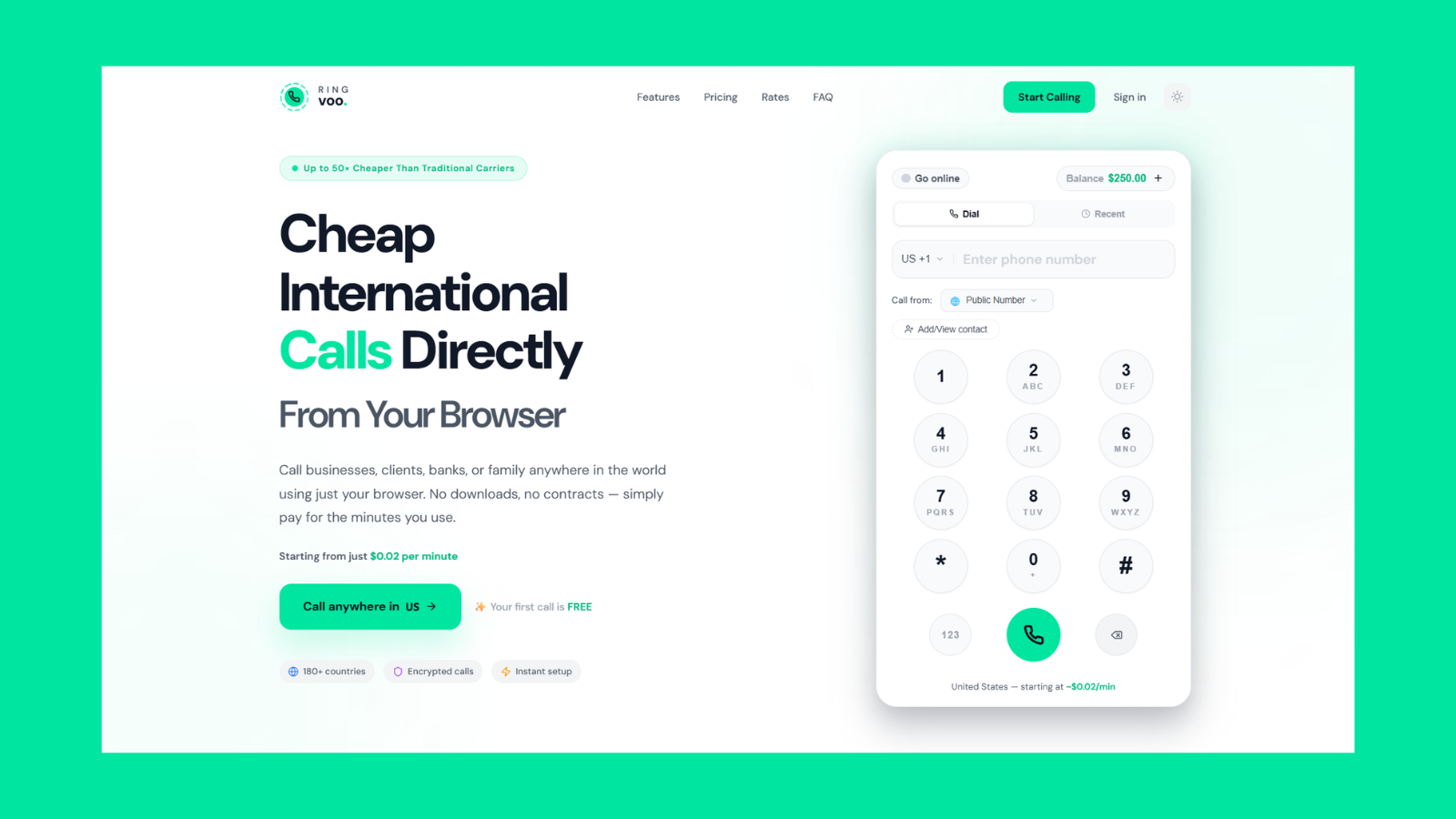
Ringvoo uses modern WebRTC audio with carrier-grade PSTN termination — optimize your Wi-Fi and headset, then dial any mobile or landline with transparent rates and call history for support follow-ups.
Try Ringvoo free — call from your browser · View international rates
Environment-Specific Playbooks
Hotel and airport lounge
Morning Wi-Fi is often better than evening peak. Sit nearer the access point or use hotspot for board-call clarity. Wired room ethernet beats lobby guest network when available.
Co-working and shared offices
Ask if WebRTC is restricted. Use booth rooms with doors — open floor plans add noise and reflective echo. Headset mandatory.
Home office with family streaming
Schedule critical international calls when household upload is idle, or enable router QoS for your laptop's MAC address. Upload bandwidth caps voice before download does.
International travel with eSIM data
eSIM data plus browser VoIP avoids roaming voice entirely — quality follows local LTE/5G strength. Test one-minute call after landing before client dial.
When Quality Issues Are Not Your Network
Far-end on speakerphone in a car — you cannot fix their side; ask them to switch to handset or pause.
Destination carrier maintenance — rare but causes nationwide narrowband or one-way audio to specific countries temporarily.
Very long satellite or rural links — inherent latency on some remote landlines exceeds conversational comfort — not a WebRTC defect.
Account or codec mismatch — if every call fails one-way audio regardless of network, contact support with call timestamp and destination number for carrier trace.
Document issues with time, destination, and network type (Wi-Fi vs hotspot) — patterns speed diagnosis.
Frequently Asked Questions
Why do my international VoIP calls sound choppy?
Usually packet loss or jitter on your Wi-Fi or upload link — not the destination country. Test hotspot, use wired ethernet, and reduce competing uploads.
Is browser VoIP quality worse than a desk phone?
Not inherently — desk phones on good office networks sound fine; browser VoIP on optimized home or co-working networks matches them. Bad hotel Wi-Fi makes any technology suffer.
Does WebRTC work on all browsers?
Modern Chrome, Safari, Firefox, and Edge support WebRTC for voice. Keep browsers updated for best codec support.
Will a VPN improve call quality?
Rarely — VPN often adds latency. Disable unless your organization requires it for policy reasons.
How much bandwidth do VoIP calls need?
Roughly 100 kbps per direction for wideband voice — far less than video. Stability beats raw speed.
Why does the other person hear echo?
Usually your speakerphone feeding their voice back into your mic — use a headset.
Are international landlines lower quality than mobile?
Sometimes — older PSTN infrastructure sounds narrower. Your browser side can still be HD; the far-end network limits perceived fidelity.
Can I test quality before paying for a long call?
Place a short test call to your own mobile or a colleague — confirm two-way audio under current network conditions. Check rates for the destination before longer dials.
Clear Calls Start on Your Side
International voip call quality improves when you treat voice like video conferencing infrastructure — stable upload, clean Wi-Fi or hotspot, wired headset, and firewall-aware fallbacks. Browser calling through Ringvoo adds transparent PSTN termination worldwide once your local hop is solid.
Optimize your setup, then sign in to Ringvoo, verify rates for your corridors, and place a test call before the next client meeting. For technology background, read WebRTC calling explained and what is browser calling; for why PSTN still matters, see call landlines internationally.